Goals in StatNexa help you monitor progress toward your most important metrics, whether you're working to achieve a target or maintain performance. Goals can update automatically using data from connected sources or be tracked manually. With flexible settings, defined success criteria, and team ownership, Goals provide a clear way to measure what matters most and keep everyone aligned.
Create a goal
You can create a goal from the OKRs page by clicking + New Okr.
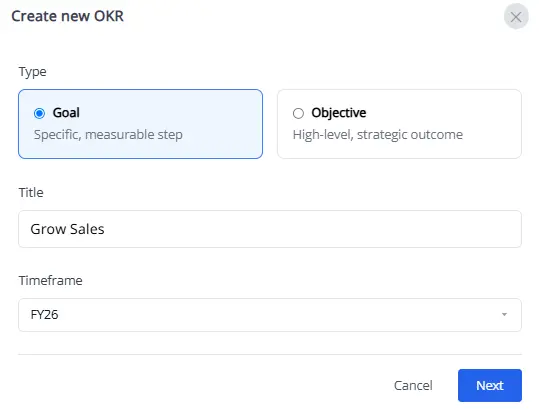
Step 1: Define goal details
Enter the key information that defines the goal:
- Select Goal as the type.
- Enter a Title that clearly describes what you want to achieve.
- Select a Timeframe to define when the goal applies.
Step 2: Choose how progress is tracked
The next step is to define how progress will be measured. You can track progress automatically using connected data, manually through updates.
Manual -
Manually track your progress by entering updates yourself. Set a starting value and a target value, choose a unit type (number, percentage, or currency), and record your progress as you reach each milestone.
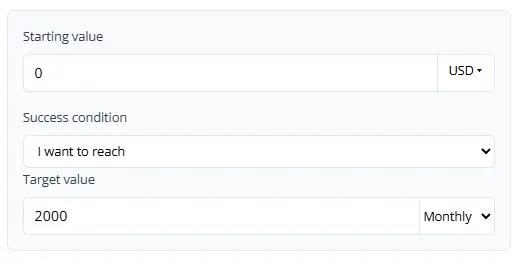
Use this for offline or qualitative targets that aren't tracked automatically.
Metric (Automatic) -
Progress updates automatically based on a metric from a connected data source. You enter progress updates yourself. Progress is calculated automatically from linked sub-goals. You'll select the metric and set a target (fixed value, percent change, or other metric), and define a success condition — reach, stay above or stay below.
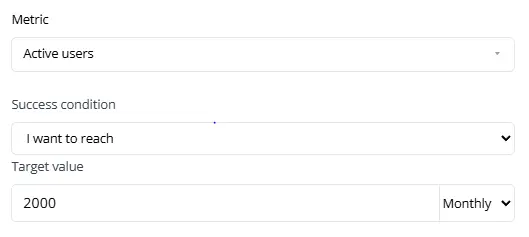
Use this option to track progress using metrics from connected data sources in Statnexa.
Sub-goals (Automatic) -
Progress is calculated automatically based on linked sub-goals. Choose a measurement type (average percentage, total number, or total currency), and the parent goal updates automatically as linked sub-goals progress.
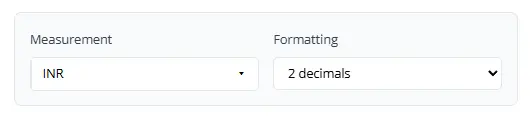
Use this to combine multiple goals into a single higher-level goal, allowing you to track overall progress toward a broader objective.
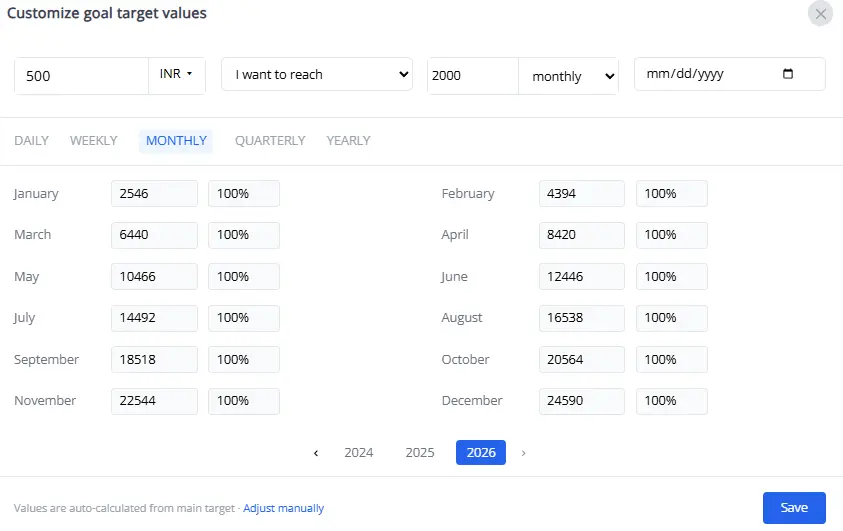
Step 3: Adjust granular goal values (Optional)
By default, target values apply to the current and future periods. To edit or include values for past periods:
- Click Advanced Settings to open customization options.
- Select Adjust manually in the bottom-left corner.
- Enter the desired values for each period.
- Click Save to confirm your changes.
Step 4: Status Updates
Use the Status Updates section on a goal's detail page to keep progress up to date. The available update options depend on whether the goal tracks progress automatically or manually.
Automatic Progress (Metric or Sub-goal–based) -
Update frequency: Daily, weekly, monthly, quarterly, or whenever the objective's status changes (for example, from On Track to At Risk or Off Track).
Purpose: Keeps progress synchronized with changes in linked sub-goals and objective status.
Manual Progress -
Update frequency: Daily,weekly, monthly, quarterly or yearly.
Purpose: Helps the goal owner stay on track with manual progress update.
Create an aligned goal
You can create an aligned goal directly from the goal details page to link related targets.
- On the OKRs page, locate the goal you want to align with.
- Click View details.
- On the goal details page, scroll to the Aligned goals section.
- Click + New subgoal.
Follow the instructions in Step 1to define the goal details and choose how progress is tracked.
Once created, the aligned goal appears in the Aligned goals section of both goals, making it easy to navigate between related targets.